Logging in with Microsoft Azure MFA
Logging into the Live Platform portal interface is secured using Azure Authentication with Multi-Factor Authentication (MFA). Login can be performed by any M365 user who is configured as a Live Platform operator configured in the Enterprise application for the Live Platform instance of the customer tenant (see Setting up Microsoft Azure Authentication).
Verify with Live Platform Professional Services that you have the required Admin permissions. Access to the Operation Center portal supports Multi-Factor Authentication if Service Provider, Channel and Customer Microsoft 365 tenants are configured for MFA.
| ➢ | To login using Azure authentication: |
| 1. | Enter the Live Platform URL. |
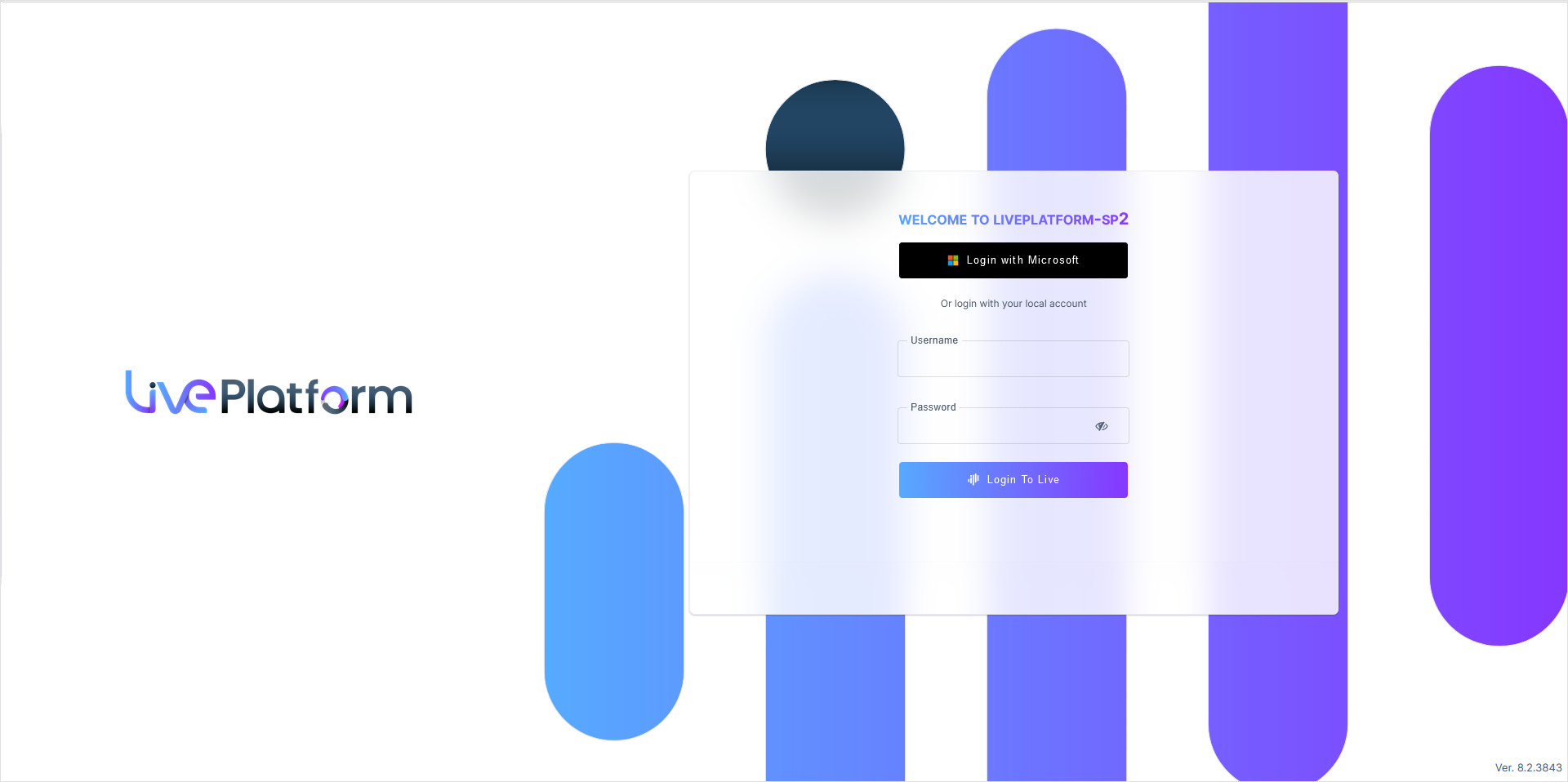
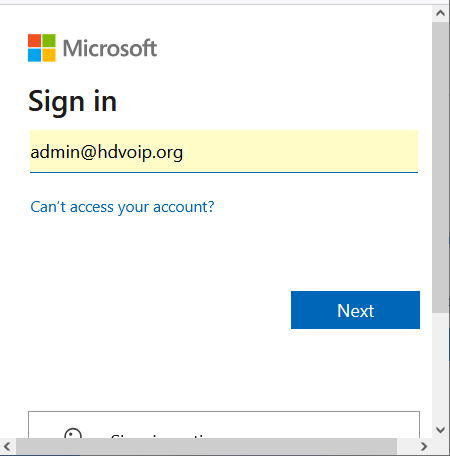
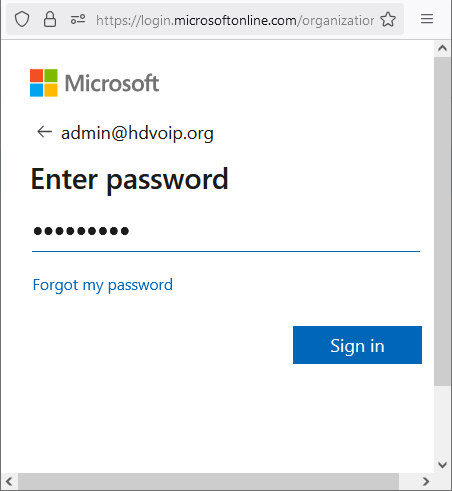
| 2. | Enter the username and password of the Service Provider Admin, Operator or Monitor and then click Login with Microsoft. |
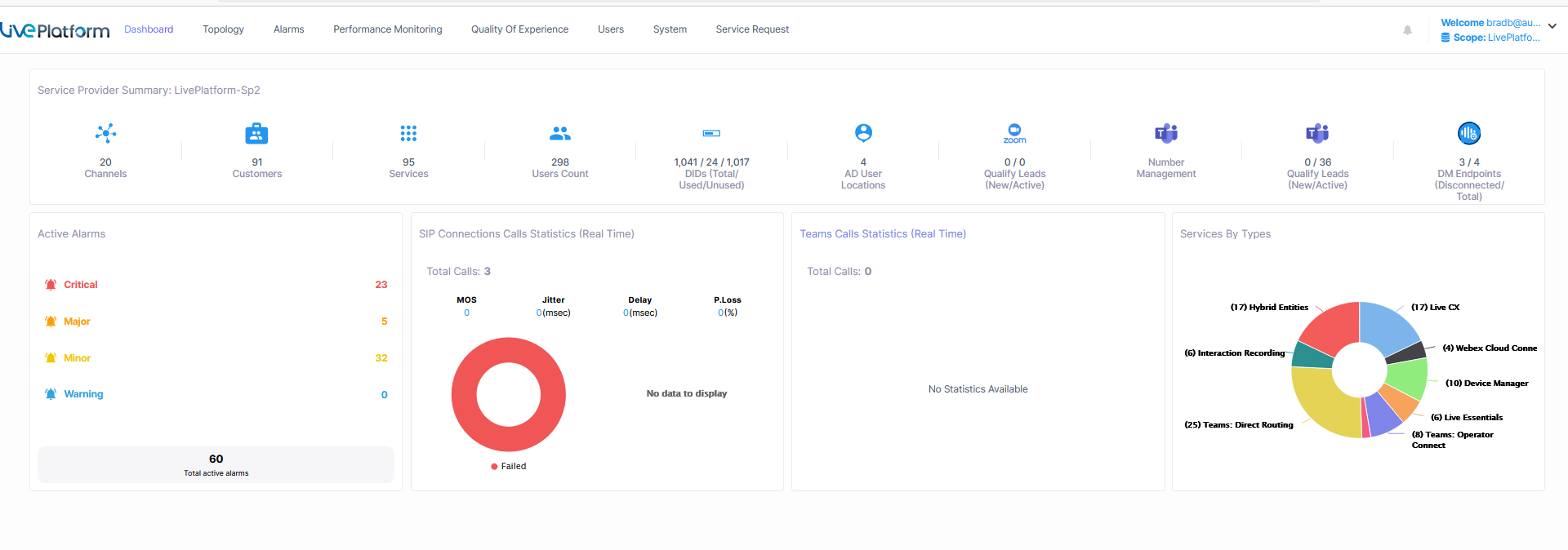
Once successfully logged in, the Live Platform Dashboard is displayed.
|
|
Element |
Description |
||||||||||||||||||||||||
|---|---|---|---|---|---|---|---|---|---|---|---|---|---|---|---|---|---|---|---|---|---|---|---|---|---|---|
|
|
Service Provider Logo |
The Service Provider logo (uploaded by SysAdmin in Service Provider Tenant settings). |
||||||||||||||||||||||||
|
|
Menu Bar |
Menu bar options:
|
||||||||||||||||||||||||
|
|
Notifications |
A list of notifications for alarms raised on the Microsoft 365 platform and for system tasks statuses. |
||||||||||||||||||||||||
|
|
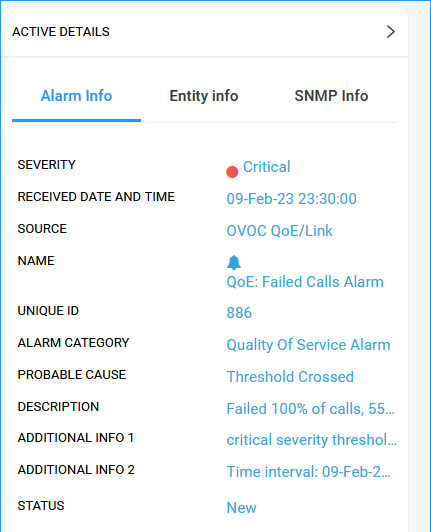
Active Alarms Summary |
Summary of Critical, Major, Minor and Warning alarms. |
||||||||||||||||||||||||
|
|
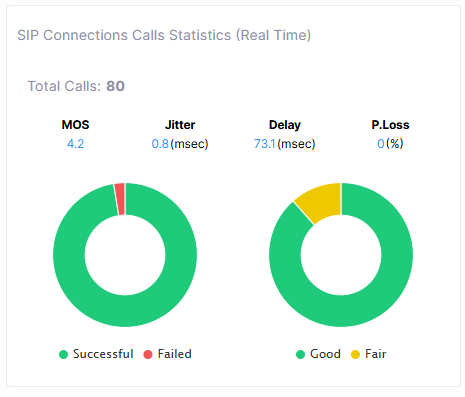
SIP Connections Calls Statistics (Real Time) |
Summary of SBC Calls Statistics for all managed |
||||||||||||||||||||||||
|
|
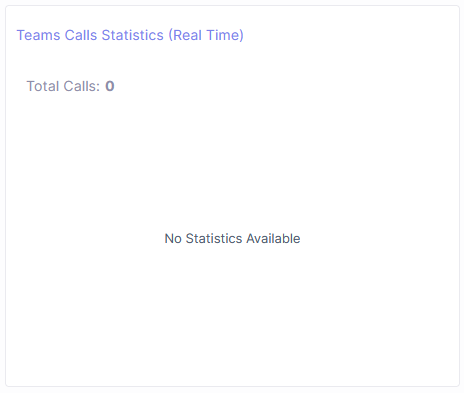
Teams Calls Statistics (Real Time) |
Summary of Microsoft Teams Calls Statistics for all managed customers and services. |
||||||||||||||||||||||||
|
|
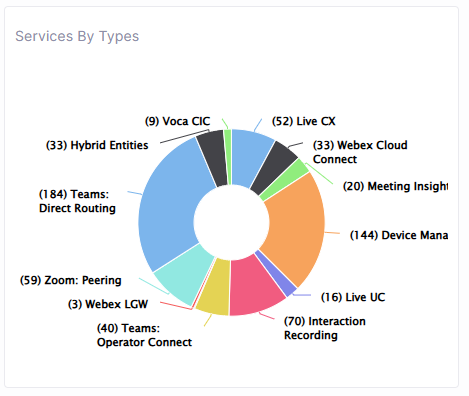
Services By Types |
Shows the breakdown of deployed managed services. |
||||||||||||||||||||||||
|
Operators Actions menu: Displays the logged in operator credentials and when clicked opens additional menu options. |
||||||||||||||||||||||||||
|
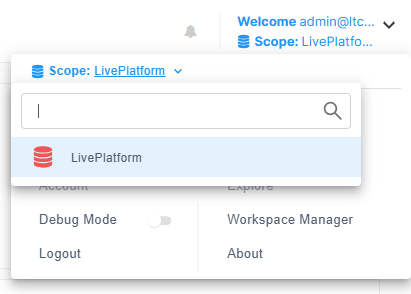
Tenant Scope |
Indicates the Service Provider Tenant Scope. In the example figure, the Service Provider tenant is 'Live Platform'. |
||||||||||||||||||||||||
|
|
Additional options |
|
||||||||||||||||||||||||
|
Service Provider Summary |
||||||||||||||||||||||||||
|
|
Link to Customers page |
Link to Customers page. |
||||||||||||||||||||||||
|
|
Link to Channels page |
Link to the Channels page. |
||||||||||||||||||||||||
|
|
Link to Services page |
Opens the Services page of the Customer. |
||||||||||||||||||||||||
|
|
Users Count |
Summary of the total number of managed users for all service types and link to the User Details page. This value is only applicable for Microsoft Teams Direct Routing and Operator Connect Hosted Essentials Plus and Operator Connect Hosted Po license tiers. For all other services, 0 is displayed.
|
||||||||||||||||||||||||
|
|
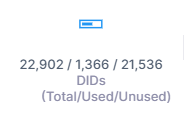
DID Usage Summary |
The aggregated number of assigned phone numbers and the total number of available numbers for all service types that are attached to the Service Provider. |
||||||||||||||||||||||||
|
|
Link to AD User's Location page |
The number of Active Directory user locations of the users managed by the provider’s customers and links to a statistics summary screen for these entities. This value is only relevant for Microsoft Teams Direct Routing and Operator Connect Hosted Essentials Plus and Operator Connect Hosted Po license tiers. |
||||||||||||||||||||||||
|
|
Zoom Customers |
The number of New (leads) and Active Zoom customers. |
||||||||||||||||||||||||
|
|
Operator Connect Number Management Page |
|
||||||||||||||||||||||||
|
|
Operator Connect Customer Summary |
Link to the Operator Connect Customer Leads page in the AudioCodes Live Portal displaying the new and existing customers. See Managing Leads and Tenant Services. |
||||||||||||||||||||||||
|
|
DM Endpoints |
Summary of the number of disconnected endpoints and the total number of deployed endpoints and link to Device Manager page. |
||||||||||||||||||||||||